Are you fed up with the look and feel of your J2 applications? Well, You are not alone. Originally JDK is shipped with only 03 Look and Feel classes to present UI components in our Java applications (Nimbus,Metal and Motif) or you can use the default system UI by invoking UIManager.getSystemLookAndFeelClassName()).
Which brings us to JTattoo , It is Java library of LookAndFeel classes ,and provides us with 13 different look and feel classes to choose from . Users have different life styles and preferences, While some can get along with simple and lightweight themes , some may prefer darker and flashy UIs. By using JTattoo's wide range of options we can let user decide how he wants our J2 applications to look like according to their tastes.
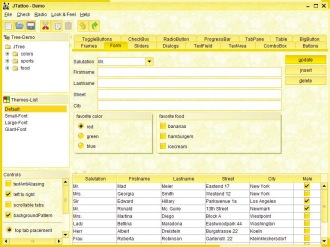
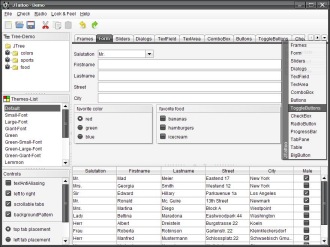
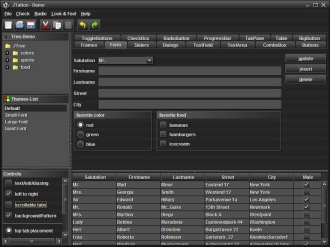
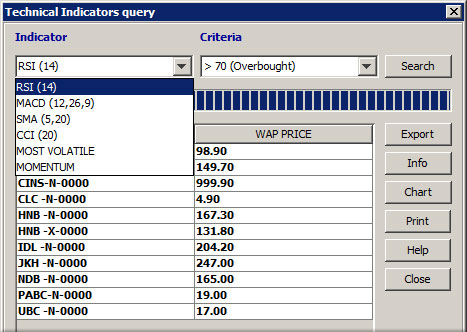
Here are some sample look and feel classes. you can view all available LF classes here.

How to change LookAndFeel Class?
Following code shows how to assign LF classes dynamically. I have chosen 'smart' LF in JTatoo library.
 public void changeLF() {
        try {
            // select Look and Feel for e:g "Smart" LF
            UIManager.setLookAndFeel("com.jtattoo.plaf.smart.SmartLookAndFeel");
//initialize this frame's UI Trees with the current look and feel.
            SwingUtilities.updateComponentTreeUI(this);
        }
        catch (Exception ex) {
            //catches UnsupportedLookAndFeelException & ClassNotFoundException
            ex.printStackTrace();
        }
 } // end
All available LF classes.
- com.jtattoo.plaf.aero.AeroLookAndFeel
- com.jtattoo.plaf.acryl.AcrylLookAndFeel
- com.jtattoo.plaf.fast.FastLookAndFeel
- com.jtattoo.plaf.mcwin.McWinLookAndFeel
- com.jtattoo.plaf.mint.MintLookAndFeel
- com.jtattoo.plaf.smart.SmartLookAndFeel
- com.jtattoo.plaf.aluminium.AluminiumLookAndFeel
- com.jtattoo.plaf.bernstein.BernsteinLookAndFeel
- com.jtattoo.plaf.graphite.GraphiteLookAndFee
- com.jtattoo.plaf.hifi.HiFiLookAndFeel
- com.jtattoo.plaf.noire.NoireLookAndFeel"
- com.jtattoo.plaf.texture.TextureLookAndFeel"






.png "English")